Showing posts with label Registry hacks. Show all posts

Friday, 9 November 2012

How to add or remove Registry editor to control panel

                                                                        Here in this tutorial i like to discuss How to add or remove registry editor to control panel.Generally in the windows provided control panel we don't find any Registry editor contained in it.Now i created a .reg file by running it we can add or remove registry editor to control panel.

To add Registry editor to the control panel:
1.Open notepad and copy the content below CODE.
2.Save it as ".reg" type and name it as anything you want preferably "AddRegeditToControlPanel".

CODE :


Windows Registry Editor Version 5.00

[HKEY_CLASSES_ROOT\CLSID\{77708248-f839-436b-8919-527c410f48b9}]
@="Registry Editor"
"InfoTip"="Starts the Registry Editor"
"System.ControlPanel.Category"="5"

[HKEY_CLASSES_ROOT\CLSID\{77708248-f839-436b-8919-527c410f48b9}\DefaultIcon]
@="%SYSTEMROOT%\\regedit.exe"

[HKEY_CLASSES_ROOT\CLSID\{77708248-f839-436b-8919-527c410f48b9}\Shell]

[HKEY_CLASSES_ROOT\CLSID\{77708248-f839-436b-8919-527c410f48b9}\Shell\Open]

[HKEY_CLASSES_ROOT\CLSID\{77708248-f839-436b-8919-527c410f48b9}\Shell\Open\Command]
@=hex(2):25,00,53,00,79,00,73,00,74,00,65,00,6d,00,52,00,6f,00,6f,00,74,00,25,\
  00,5c,00,72,00,65,00,67,00,65,00,64,00,69,00,74,00,2e,00,65,00,78,00,65,00,\
  00,00

[HKEY_LOCAL_MACHINE\SOFTWARE\Microsoft\Windows\CurrentVersion\Explorer\ControlPanel\NameSpace\{77708248-f839-436b-8919-527c410f48b9}]
@="Add Registry Editor to Control Panel"

Code for How to remove Registry editor from control panel.

CODE:


Windows Registry Editor Version 5.00

[-HKEY_CLASSES_ROOT\CLSID\{77708248-f839-436b-8919-527c410f48b9}]

[-HKEY_LOCAL_MACHINE\SOFTWARE\Microsoft\Windows\CurrentVersion\Explorer\ControlPanel\NameSpace\{77708248-f839-436b-8919-527c410f48b9}]

That's all for today folks if you have any issues please contact through comment.If you like the post spare a minute to share it.


Print Page

Wednesday, 7 November 2012

How to backup Windows registry


Registry editor is a very important tool to make some registry operations and hacks.It is very important to backup the registry as it may effect the normal functioning of the computer.Follow these simple steps to backup the registry:
1. Open the registry editor.

A.Click on windows start and type "run" and press enter.


B.Type "regedit" and click ok.


C.A dialogue box appears asking "Do you want to allow the following program to make any changes to this computer?" .press "yes".


D.It will open Registry Editor.

Open Windows 8 Registry Editor
2. Confirm the UAC prompt:
Confirm Registry UAC prompt
3. Click on File and then on Export to start the backup process
Backup Windows 8 Registry
4. Select the checkbox All and enter a name for the registry backup and add the date to the filename:
Create Backup Windows 8 Registry
5. Finally, click on Save and wait – have patience the backup might take a while. You have now successfully created a backup of the registry.
You can restore the backup by using the Import feature of the registry editor, which is also on the File menu.
If you’re running into any problems during the backup let us know

Print Page

Friday, 2 November 2012

How to change number of row tiles in windows 8


By default, Windows 8 will try to figure out the number of rows it should show on your Start Screen based on the resolution of your monitor. 

What if you don’t want the number of rows it determines?

 Well, you can change it to a different value if you like. As you can see, I decided to show you 1,2 and 3 rows. You can choose a value from 1 to 5.

Go to Regedit or the registry editor.

 Navigate to the following key:

HKEY_CURRENT_USER\Software\Microsoft\Windows\CurrentVersion\ImmersiveShell\Grid


Create a new DWORD value here and name it Layout_MaximumRowCount. Give it a value between 1 and 5. Enjoy!


Thursday, 1 November 2012

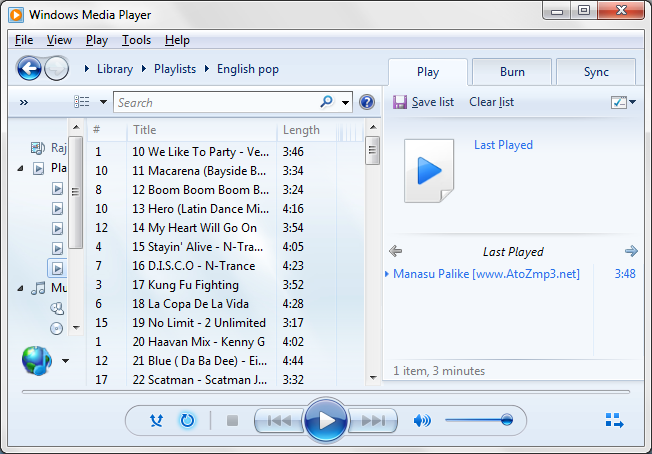
Delete Files From The Recent File List In Windows Media Player

Windows Media Player (WMP) is a built-in application that allows you to play multimedia files. Like many other applications, WMP remembers the most recently played files and displays them in the Recent File List under the File menu. This feature is useful if you regularly play certain files, but you may want to clear the list if you share the computer and a user account or create archives and CDs.


You can manually delete the list through the Windows Registry:
1. Start the Windows Registry Editor, regedit.exe, by typing regedit in the Windows Run Command Line.
2. Go to HKEY_CURRENT_USER\Software\Microsoft\MediaPlayer\Player\RecentFileList.
3. Delete the RecentFileList subkey.
4. If you've also streamed content from the Internet, you can delete the RecentURLList subkey.
5. Exit the Registry Editor.
6. Restart the computer.
To keep certain files in the list, don't delete the entire key. Deleting individual entries within the key will get rid of the files that you no longer want in the Recent File List.
That's all for today folks.Thanks for reading and if you like the post feel free to comment and share..........
Print Page

Tuesday, 16 October 2012

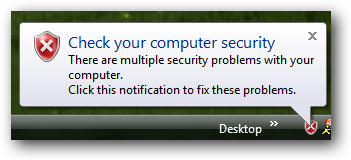
How to disable all notification balloons in Windows


It is too annoying sometimes to see the pop-up notification balloons in the system tray.Have you ever thought of disabling them.This might be an extreme step.You may turn off this notifications in each specific offending application.If you want to disable them then go on....

1.Click on windows start and type "run" and press enter.

2.Type "regedit" and click ok.

3.A dialogue box appears asking "Do you want to allow the following program to make any changes to this computer?" .press "yes".

4.It will open Registry Editor.

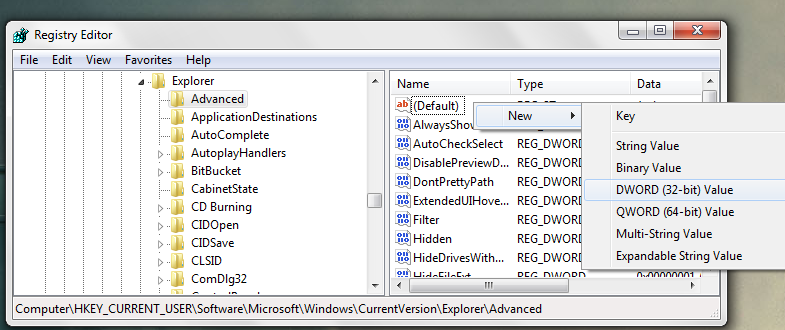
5.Go to "HKEY_CURRENT_USER\Software\Microsoft\Windows\CurrentVersion\Explorer\Advanced"

6.Create a new 32-bit DWORD and name it as "EnableBalloonTips" and give it value 0.Now logoff and you will see the changes that are made(No more notification Balloons).


That's all for today folks.If you like the post please feel free to comment and share it...........;-)

Print Page

Wednesday, 10 October 2012

How to skip the annoying "use the web service to find the correct program" dialog in windows 7


If we use windows many of us generally find this annoying dialog box.In this tutorial i will tell you how to temporarily disable this dialog box.Follow these simple steps to do so:


1.Click on windows start and type "run" and press enter.


2.Type "regedit" and click ok.


3.A dialogue box appears asking "Do you want to allow the following program to make any changes to this computer?" .press "yes".


4.It will open Registry Editor.

5.Go to "HKEY_LOCAL_MACHINE\SOFTWARE\Microsoft\Windows\CurrentVersion\Policies\Explorer"


6.Create a DWORD named NoInternetOpenWith and give it a value 1.You are done with it.


7.If you want to reset back to default simply change the value to 0 or delete the DWORD.

That's it for today folks.If you find the post interesting please share it.Please feel free to comment.


Print Page

Tuesday, 9 October 2012

How to increase the speed of Aero Taskbar Thumbnails in windows 7

When we hover the mouse over a taskbar thumbnail it willshow the specific window.By default there is a specific delay in this process.In this tutorial i will tell you how to increase or decrease the speed of the Aero Taskbar Thumbnails.


1.Click on windows start and type "run" and press enter.
2.Type "regedit" and click ok.

3.A dialogue box appears asking "Do you want to allow the following program to make any changes to this computer?" .press "yes".

4.It will open Registry Editor.

5.Go to "HKEY_CURRENT_USER\Software\Microsoft\Windows\CurrentVersion\Explorer\Advanced"


6.Create a new DWORD by right clicking and name it as "ExtendedUIHoverTime".


7.Give it a decimal value of 0 or 1 which is in milliseconds.To slow it down you can give any value from 400 to 1000 or any.generally nobody wants to slowdown it.
Now logoff and logon and see the change.
So that's all for today folks.If you find the post interesting please spare a minute to share it as "sharing is caring".Please feel free to comment.

Print Page

Monday, 8 October 2012

How to prevent windows update from forcibly rebooting your pc

Most of us face this problem and it is really annoying to see the Windows update restart dialogue box sometimes.In this tutorial i will tell you how to temporarily disable this.Follow these steps:


1.Click on windows start and type "run" and press enter.

2.Type "regedit" and click ok.

3.A dialogue box appears asking "Do you want to allow the following program to make any changes to this computer?" .press "yes".

4.It will open Registry Editor.

5.Goto"HKEY_LOCAL_MACHINE\SOFTWARE\Policies\Microsoft\Windows\WindowsUpdate\AU"

6.Create anew 32-bit DWORD value named "NoAutoRebootWithLoggedOnUsers" and give it a value 1.

Now you are done if you want to put things back to the way they were simply delete the 32-bit DWORD.


Print Page

Sunday, 7 October 2012

How to cleanup your messy context menu

The most irritating part in windows is the unused set of applications in the context menu.Many don't even use half of them.So,today in this tutorial you will learn how to clean up your messy context menu.If you want to add any application to context menu please read  How to add any application to context menu

1.Click on windows start and type "run" and press enter.

        2.Type "regedit" and click ok.

         3.A dialogue box appears asking "Do you want to allow the following program to make any changes to this computer?" .press "yes".

4.It will open Registry Editor.The context menu items are found at two different locations and are to be handled differently.It is explained further in the post.5.Go to "HKEY_CLASSES_ROOT\Directory\Background\shell"
6.create a new stringvalue and name it as "Extended" and you are done removing it
 7.Go to "HKEY_CLASSES_ROOT\Directory\Background\shellex\ContextMenuHandlers". 8.Click on anything you want to remove click on (Default) and replace its value data with "--" in the front and you are done.
That's all for this post folks.If you like the post feel free to spread this post by sharing it and feel free to comment.If you have any genuine doubts you  can approach me.........

Monday, 1 October 2012

How to add any application to the context menu

So many people want to launch a frequently used application  in the right click menu.In this post i will explain how to add a specific application to the context menu.Follow these simple steps to add a specific spplication to the context menu:


1.Click on windows start and type "run" and press enter.

2.Type "regedit" and click ok.

3.A dialogue box appears asking "Do you want to allow the following program to make any changes to this computer?" .press "yes".

4.It will open Registry Editor.

5.Go to "HKEY_CLASSES_ROOT\Directory\Background\shell"
6.Right click on shell and create key called "Notepad".
7.Right click on notepad and create a new key names command.
8.Right click on (Default) and click on modify and change the value data to "C:\Windows\System32\notepad.exe".(i.e giving the directory of notepad application).

9.You can now see Notepad in the right click of the desktop context menu.

So, that's it folks if you have any queries about this pls feel free to comment below.Thank you for your visit and patience.


Print Page

Saturday, 29 September 2012

How to add control panel to my computer


In the previous post i told you how to add recycle bin yo my computer.In this post i would like to tell you how to add control panel to my computer.Follow these given simple steps.


1.Click on windows start and type "run" and press enter.

2.Type "regedit" and click ok.

3.A dialogue box appears asking "Do you want to allow the following program to make any changes to this computer?" .press "yes".

4.It will open Registry Editor.

5.Go to "HKEY_LOCAL_MACHINE\SOFTWARE\Microsoft\Windows\
CurrentVersion\Explorer\MyComputer\NameSpace".

6.Create a new key and name it as "{26EE0668-A00A-44D7-9371-BEB064C98683}".


7.After completing the above step the registry editor should look like


Hope you enjoyed the post.please share it as it may be useful to others.


Print Page

How to Add Control Panel To The Desktop Right-Click Menu

Having access to the control panel from the context menu (Desktop right-click menu) seems logical. However, by default, this option is not there. This registry hack will allow you to add a control panel option when you right click on desktop.Follow these simple steps to create the option in right-click menu:


1.Click on windows start and type "run" and press enter.

2.Type "regedit" and click ok.

3.A dialogue box appears asking "Do you want to allow the following program to make any changes to this computer?" .press "yes".

4.It will open Registry Editor.

5.Go to HKEY_CLASSES_ROOT\Directory\Background\shell. Once you are there right-click on "shell" and create a new key called called Control Panel.

6.Now right click on Control Panel and create new key called command.

7.After creating command open it. (i.e click on it).There you will find 
                  Name             Type                 Data

                  (Default)          REG_SZ          value not set

8.Right-click on (Default) and a window appears.Then change the value data field (i.e paste the following code there)

9."rundll.32.exe shell32.dll,Control_runDLL" copy this and click ok.

10.You can now see the new Control Panel item in the context menu.If you want to remove this simply delete Control Panel Key.

Hope you enjoyed the post.Spare a minute and share it as it may help many others.

Print Page

Saturday, 15 September 2012

How to Rename Recycle Bin

Follow these simple steps to rename your Recycle bin :

1.Click on windows start and type "run" and press enter.

2.Type "regedit" and click ok.

3.A dialogue box appears asking "Do you want to allow the following program to make any changes to this computer?" .press "yes".

4.It will open Registry Editor.

5.Go to "Computer\HKEY_CLASSES_ROOT\CLSID\{645FF040-5081-101B-9F08-00AA002F954E}".

6.You will see "Recycle bin" under the "Data" field.

7.click on "(Default)" and in the "Value data :" field enter the name you want to rename your recycle bin and press ok.

THANK YOU

PLEASE COMMENT WHETHER YOU LIKE THIS POST.

Print Page