Monday, 18 February 2013

Best blogging tips

best blogging tips


When starting a successful blog, you must learn to be consistent and patient. Consistency is a major factor because you must provide fresh information that will engage readers on a regular basis. In order to gain readers and create a successful blog, you must also be patient. It can take time for your blog to catch on.


Title of the post

Ensure that the titles of your blog posts are very catchy. Imagine that you are someone who is just browsing the internet and you see your blog post among thousands of others. You should ensure that your blog headline sticks out from the rest of the blog posts.


Length of the post

If you have a very long post, divide it into smaller parts, posted with the title and part number. If a reader finds the first part engaging, they will be enticed to return for further parts. Doing so also ensures that your readers do not become overwhelmed by an especially lengthy post.


Stick with the content

Try to make sure that you are always writing with your readers in mind. Do not partake in keyword stuffing where you throw a ton of keywords into your blogs to get the search engines attention. Ultimately, your content and writing style will have the final say in whether your blog succeeds or not.


Maintain consistency

Make sure that you consistently post when running a blog. If you don't post content regularly, then your site traffic will diminish fairly quickly. Have a guestbook or contact information posted as well, so your audience can interact and provide feedback. If your readers are happy with your response, they are more likely to come back.


Don’t get too involved in formatting

Don't go crazy with font styles, capitalizing, underlining, bolding and the like. While it is important to use formatting appropriately, too much formatting makes everything merge together on the page. Only use special font styles when you really need to draw the reader's attention to a particular word or thought.


Take a note

Everything you do can end up being the subject of a blog. Take notes when you are away from the computer, if you stumble across an idea that may translate into a post. You should always keep your eyes open for subject ideas. Writing is the easy part, it's coming up with the initial concept that usually leads to writer's block.


Comments

You'll need to decide if you want to publish all comments as they come in, or whether to hold them for approval before they appear on your site.

Now that you are more aware, do not hesitate to put these insights to work for you immediately. Successful Blogging can be enjoyable, if you take the time to do it with sincerity and knowledge. Start today and reap the benefits that are possible with the insights provided.


Print Page

Thursday, 7 February 2013

How to add 'You might also like' widget for blogger

EDITED!!!
After a series of problems faced by the users we finally found a way to make this widget work properly. Please leave a comment below in case of any problems.


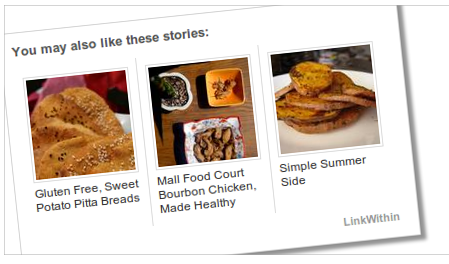
In some blogs and websites you may have seen this ‘You might also like’ widget somewhere below the posts in the footer part. It will help you to keep your readers for some more time on your blog. Here in this tutorial I will take you through a set of instructions on how to add ‘You might also like’ widget for blogger.

i. First of all go to linkwithin. website.


ii. Fill the form with,
Your email
Your Bloglink
1.                 Your blog url (with http://)
2.                 You can decide how many stories you want to show below posts, May be set to 3,4 or 5.
3.                 Now choose Light Dark Combination if your blog has light background then leave it blank otherwise check that Box
4.                 Choose the platform as 'Other'. Click on 'Get Widget!'.
5.       Choose one option and click on continue.( I opted the second).
6.       You will get a HTML code.

LinkWithin - techpro365.blogspot.in


Go to layout of your blog and click on 'Add a Gadget'. Copy and paste the code (that you will get after clicking "Get Widget!" of the LinkWithin page) in the content of 'HTML/JavaScript' type and save it. Drag and Drop the LinkWithin box under the "Blog Posts" box for better performance.

If you have any genuine problems regarding this post feel free to contact me.


Print Page

Monday, 4 February 2013

Attractive Ice cube social sharing icons for blogger


In this post i am providing you with a set of social sharing icons set for blogger.Adding them to your blog is so simple and can be done in a very few minutes.

1. Log in to blogger  Design > Page Element.

2. Click Add Gadget and select 'HTML/Javascript

3.Now Paste Below code.

<style>
/* techpro365.blogspot.in  */
.bubblewrap{
list-style-type:none;
margin:0;
padding:0;
}
.bubblewrap li{
display:inline;
width: 60px;
height:60px;
}
.bubblewrap li img{
width: 50px; /* width of each image.*/
height: 50px; /* height of each image.*/
border:0;
margin-right: 4px; /*spacing between each image*/
-webkit-transition:-webkit-transform 0.1s ease-in; /*animate transform property */
-o-transition:-o-transform 0.1s ease-in; /*animate transform property in Opera */
}
.bubblewrap li img:hover{
-moz-transform:scale(1.8); /*scale up image 1.8x*/
-webkit-transform:scale(1.8);
-o-transform:scale(1.8);
}</style>

<br />
<center>
<br />
<ul class="bubblewrap">
<li><a href="http://www.linkedin.com/Username"><img src=" https://blogger.googleusercontent.com/img/b/R29vZ2xl/AVvXsEgjjg4bZo52r2IwJ4pG_eQ0QArLIJSgNtVU4ce0-4HHPhsd9LYK2g1pF7uzI60NcfJ-dQv2_gsZXrId3xjoi7TXNHV9lI_c_gDretgjGy2u4GXKru1loe3w3Uvi-tfwwTa_8aAj0mUF3cKV/s1600/bloggertrix_linkedin.png " title="Add to Linkedin" /></a></li>
<li><a href="http://www.facebook.com/Fan page"><img src=" https://blogger.googleusercontent.com/img/b/R29vZ2xl/AVvXsEjiYxyZp-L_C59L9ygPk_LsTCJ1GmpMJkduM1BA8RS1lVDOhwQttX7lwIng6tQaw3bsyC_i9pFTDhZeCBiUdkyXWDZfzmkmYr2F64dgMB6X-oemrWbKX5Kyv46IrEinofwzRAwLBnFcwODJ/s1600/bloggertrix_facebook.png " title="Add to Facebook" /></a></li>
<li><a href="http://www.stumbleupon.com/username"><img src=" https://blogger.googleusercontent.com/img/b/R29vZ2xl/AVvXsEi8ZdvHcsE3oUh1DpM8gBVaQKvyqqYofxAjJJ7iA0OEdhlrR23cYrG3eG0t4l4T7heBsgPZ9WpNdsHSnH46PIgQJ9YwCRmf8o_z1J1tgOMLiaLco1onMGkwd8SuTjxoERPm35NeG09K5Y8m/s1600/bloggertrix_stumbleupon.png " title="Add to Digg" /></a></li>
<li><a href="http://www.twitter/Twitter page"><img src=" https://blogger.googleusercontent.com/img/b/R29vZ2xl/AVvXsEiF1nTvmOgzkJ_DkqnlWVPdUImdNo_Dz8mZ_xno4Dnjx-ZM2-E54l6kA4Qzs8s62PXA9S2iYyIhKVwtLTZzRj1v55_ivvCQrlhh_z29gE2Ir8Jf203KdZRJtns1tzsBaMCye0NISC_2rCSn/s1600/bloggertrix_twitter.png " title="Add to Twitter" /></a></li>
<li><a href="http://feeds2.feedburner.com/rss feed"><img src=" https://blogger.googleusercontent.com/img/b/R29vZ2xl/AVvXsEiQV7PFkJ-xG5ZyjgncL68fdks22-dYuG4otoSNhjln_KoAVVeiSeewHnuxm9j0fGNmPxGoqmN5lQn2A-xx88BKM2osw9NoDW2QTc_sZ8qUfsRu9micIGYSfZ2zg1Z7e1teTl2BnKBNzUG_/s1600/bloggertrix_RSS.png " title="Add RSS Feed" /></a></li>
</ul>
</center>

Before adding this code you should change those specific attributes or fields of the social sharing sites.

Print Page

How to add 'About the author' at the end of every post


Steps to follow to add about the author below post:
Step 1: Go to your blogger dashboard>>edit template>>expand widget template.(Backup your template first)

Step 2: Now find the below code  on it. Use “ctrl+f” for that one.
<data:post.body/>
You will get this code on two places sometimes you will get this code in more than three places.

Step 3: Now add the below given code in below the line you find  in step 2 in any one. You just have to change the colors given in code and than add it.
<b:if cond='data:blog.pageType == &quot;item&quot;'>
<div class="about-author">
<h3>About Author:</h3>
<img align="left" src=" paste url of your image here ">
</img>
<p>
 Write something about yourself</p>
<p>Follow him @ <a href="http://twitter.com/yourtwittername" rel="nofollow" target="_blank">Twitter</a> | <a href="https://www.facebook.com/facebookfanpagename" rel="nofollow" target="_blank">Facebook</a></p>
</div>
</b:if>
Step 4: Before adding this code just do the simple modifications in highlighted colours.


Print Page