Saturday, 27 October 2012

How to create a shortcut for Shutdown and Restart

Have you ever thought of creating a shortcut for shutdown ?
yes,we can create a shortcut for shutdown and restart.

To make a new shortcut, right-click on an empty part of the desktop (or inside a folder). Select New, then Shortcut. A “wizard” will pop up to guide you through the rest of the process. You will have to provide a command line, and then a name. The name can be anything you want.

In the 'Type the location of the item' please type the following:

Shutdown -s -t 00   for shutdown and shutdown -r -t 00 for restart .The time can be any value preferably up to 30.You can also assign an icon to this shortcut.This shortcut can be pinned to your taskbar.


That's all for today folks.If you find the post interesting feel free to share it........


Print Page

Friday, 26 October 2012

Tuesday, 16 October 2012

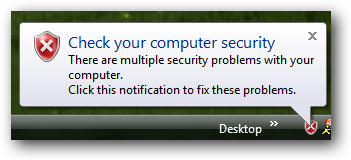
How to disable all notification balloons in Windows


It is too annoying sometimes to see the pop-up notification balloons in the system tray.Have you ever thought of disabling them.This might be an extreme step.You may turn off this notifications in each specific offending application.If you want to disable them then go on....

1.Click on windows start and type "run" and press enter.

2.Type "regedit" and click ok.

3.A dialogue box appears asking "Do you want to allow the following program to make any changes to this computer?" .press "yes".

4.It will open Registry Editor.

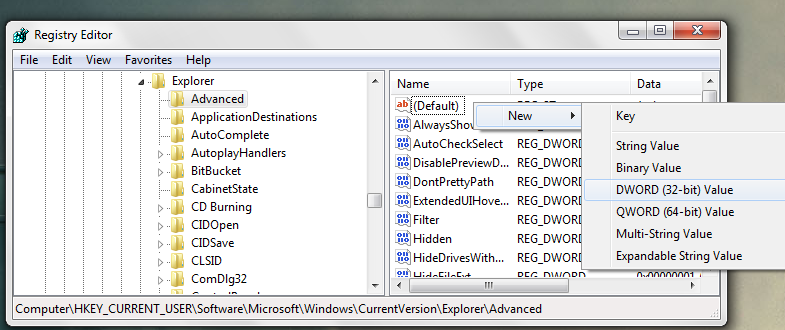
5.Go to "HKEY_CURRENT_USER\Software\Microsoft\Windows\CurrentVersion\Explorer\Advanced"

6.Create a new 32-bit DWORD and name it as "EnableBalloonTips" and give it value 0.Now logoff and you will see the changes that are made(No more notification Balloons).


That's all for today folks.If you like the post please feel free to comment and share it...........;-)

Print Page

Wednesday, 10 October 2012

How to skip the annoying "use the web service to find the correct program" dialog in windows 7


If we use windows many of us generally find this annoying dialog box.In this tutorial i will tell you how to temporarily disable this dialog box.Follow these simple steps to do so:


1.Click on windows start and type "run" and press enter.


2.Type "regedit" and click ok.


3.A dialogue box appears asking "Do you want to allow the following program to make any changes to this computer?" .press "yes".


4.It will open Registry Editor.

5.Go to "HKEY_LOCAL_MACHINE\SOFTWARE\Microsoft\Windows\CurrentVersion\Policies\Explorer"


6.Create a DWORD named NoInternetOpenWith and give it a value 1.You are done with it.


7.If you want to reset back to default simply change the value to 0 or delete the DWORD.

That's it for today folks.If you find the post interesting please share it.Please feel free to comment.


Print Page