Thursday, 21 February 2013

How to add 'Facebook Like Box' for blogger


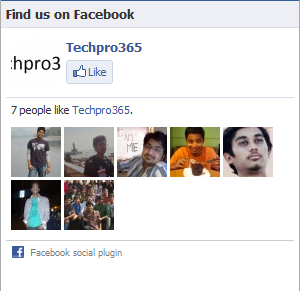
Facebook like box


If you had the thought of adding a plugin or widget of facebook like box you came to the right place. Here in this tutorial I would like to take you through the process of adding 'Facebook Like Box' for blogger.

·         Login to your Blogger Dashboard, and navigate to Template > Edit HTML.
·         Click on the checkbox which says “Expand Widget Templates”.
·         Now search for <body> and paste the following code immediately after it.

Code:

<!-- .fb code starts -->
<div id='fb-root'/>
<script>(function(d, s, id) {
  var js, fjs = d.getElementsByTagName(s)[0];
  if (d.getElementById(id)) return;
  js = d.createElement(s); js.id = id;
  js.src = &quot;//connect.facebook.net/en_US/all.js#xfbml=1&quot;;
  fjs.parentNode.insertBefore(js, fjs);
}(document, &#39;script&#39;, &#39;facebook-jssdk&#39;));</script>
<!-- .fb code ends -->

    ·         After adding this code save the template.
    ·         Now navigate to Layout and click on Add a Gadget and select HTML/Javascript.
    ·         Paste the code given below.

Code:

<div class="fb-like-box" data-href="https://www.facebook.com/Techpro365" data-width="256" data-height="260" data-show-faces="true" data-colorscheme="dark" data-stream="true" data-border-color="black" data-header="true"></div>

          ·     Replace https://www.facebook.com/Techpro365 with your facebook fanpage link or url.
          ·         Click on save and you are done.

      Customization:

       You can place this gadget anywhere according to your convenience of your blog.
·         You can change the dimensions of the data-height and data-width fields according to the dimensions required for your blog.
·         With data-stream=”true” it shows the posts of your blog, if you don’t want to show your post simply remove it. Same thing can be done with data-border-color="black".
·         We have two choices with colour scheme dark and light, modifications can be done as per your choice.

If you are facing any problems in adding the code please feel free to let me know through comment or contact me.


Wednesday, 20 February 2013

How to out stand your blogging competition


Have you ever thought of standing first out of the competition among all the blogs? Did you know there are a number of essential ways to beat the other bloggers by becoming a better blogger?

The most critical ways to out-blog other blogs are described below. The best part is that they are all free and you can begin implementing them as part of your blogging journey immediately.

1. Be More Useful
Make your blog so useful to visitors that they can’t resist themselves from visiting it. And also make them feel that not visiting would mean they could miss something very important or big. Always keep in mind, usefulness comes first and is available in a lot of different forms, shapes, and sizes. Your blog could be useful because it delivers breaking news, health-tips, blogging-tips, in-depth tutorials, expert advice, and more. Even entertainment can be useful for people who want and need it. Check out other blogs and figure out how you can be more useful, and then deliver that added value of usefulness on an ongoing basis.

2. Be More Trustworthy and Reliable
If people can trust that your blog will deliver that useful information they need, and they can rely on you, they'll come back again and again. If you can be more trustworthy and reliable than other blogs, then you'll be able to beat them by attracting and retaining more visitors.

3. Look Better
Your blog design should match your theme and also the promise to visitors. Make sure you live up to it by playing and looking the part in every interaction and experience that people have with your blog through comments or any other means. Confusion is a big enemy to bloggers, so make sure your blog is consistent in every way. Select a good blog design that sets expectations immediately when people visit.

4. Get Better Connections and More of Them
You should always build good relationships with your blog visitors and with people across the social web. Also, connect with other bloggers who can help to boost your online content by sharing them either directly or indirectly. These relationships help to increase sharing of your blog content, boost conversations about your blog, jump start comments for each of your blog posts, and there-by increasing traffic to your blog.

5. Care More
You should care more about your blog. That means you should take care about:
Ø  Your visitors by acknowledging them when they publish comments on your blog posts, thanking them for sharing your content with their own audiences, responding to their email messages, and so on.

Ø  Your content by publishing consistently with useful and trustworthy information on a reliable basis that meets your audience's expectations.

Ø  Your blog's performance by monitoring your traffic and publishing more of the type of content your audiences wants.


Print Page

Tuesday, 19 February 2013

Attractive Social Sharing Set for blogger


Social sharing icons


Hello! Here in this post I would like to present you with a set of social sharing icons. Adding them to blogger is a simple and small task and can be done in a matter of minutes.In an earlier post i had given a set of ice cube social icons.

1. Log in to blogger  Design > Page Element.

2. Click Add Gadget and select 'HTML/Javascript

3. Now Paste Below code.


<a href='http://twitter.com/' target='_blank'><img alt='twitter' src="https://blogger.googleusercontent.com/img/b/R29vZ2xl/AVvXsEh51VUSqLftRysqUBWjqfb-4SCNptRhuNkYxKEPDIkIwsA47TcAPldCh7crqsj3DMKw2xroOodPxxrwCzwrXajpu5A-JAbrZIjRptQd4rLQ6gRNT4O8o4A03l045tvZcqE_hoo9gVDqiZg/s1600/twitter.png" title='twitter'/></a>&nbsp;
<a href='http://facebook.com/' target='_blank'><img alt='facebook' src="https://blogger.googleusercontent.com/img/b/R29vZ2xl/AVvXsEgHWYwplzf45iOcJZZGPWtXNRMwnwrgksa1buU5ZFGJDbvmHh_YJZMBpOsW9OQ0gTOWIYJgw9D4d3qAdnDeFVPnkCMTWDkELQHUNQJB6-OtE1NsNedonffuW7aZQ5Is4MHKzo8P84_4ekg/s1600/facebook.png" title='facebook'/></a>&nbsp;
<a href='https://plus.google.com/' target='_blank'><img alt='google plus' src="https://blogger.googleusercontent.com/img/b/R29vZ2xl/AVvXsEh50rYw3pFA2pF_eQPgtjTTM-BNVSw5V-x5xCyv1ETFI2E80UAnXHyD5MOtyShqhygPa9arGPuhybV8i1SFkcLlRNVih8ta3ijZZD5AI5-cE06RFm0-GbZ57Qpseb9oFbU26KDzFfmInNY/s1600/gplus.png" title='google plus'/></a>&nbsp;
<a href='http://www.linkedin.com/' target='_blank'><img alt='linkedin' src="https://blogger.googleusercontent.com/img/b/R29vZ2xl/AVvXsEjqQ13nwjqirf9hIt4HVXAyooNauee2jHqaG610nkeX_hR99HQl_uCb4qq-BNL5SMI2792HTCH3vjt0miyLMFVBwHwTT73JFNrLHLVKNVWuKblSW4HyoiIevBu0b29puuJXxRhSNkbVYEA/s1600/linkedin.png" title='linkedin'/></a>&nbsp;
<a href='http://feedburner.com' target='_blank'><img alt='rss feed' src="https://blogger.googleusercontent.com/img/b/R29vZ2xl/AVvXsEjxWHlHoQhCHdINkSDyAHEp-KE-BEl3BYpfiq7YNGM_wM0bknJ7UPlSMXOSs3k3rpjsULnqtupztWz5rPUejCFmKkF_Y9SdBL-xvEA-nl0T2LHR9hty42Nquq9NUw1veqdWL90jHrSMDu4/s1600/rss.png" title='rss feed'/></a>&nbsp;
<a href='mailto:techpro4u@gmail.com' target='_blank'><img alt='email' src="https://blogger.googleusercontent.com/img/b/R29vZ2xl/AVvXsEi4T5SDOCCn8VVilve9K974sD8WHA1FepepkYo_oK3meWK4B5TCdcYeCexMlHsGC6gbz6ip1dX7NGOshMEkrMHbbEXKa0sj2b9MB5e1LRHoBnSp-7CEVULFt6u7abb-ytWYmFKskmlkjyE/s1600/email.png" title='email'/></a>


4. Now save it and give it a title like “share it” or anything you like.

Before adding this code please change the red coloured code with the concerned link of your blog.

If you are having any problems while adding the code please feel free to ask through comments or contact me.


Print Page

Monday, 18 February 2013

How to add 'Facebook Popout Likebox' for blogger


facebook popout like box


Hello, in this post I would like to tell you how to “How to add 'Facebook Popout Likebox' for blogger”.


First you need to have a jQuery Plugin in your Blog template.


This Step is Required, If your Blog already have this plugin then Ignore this Step.


If your Blog Don’t have this Plugin, Install the jQuery Plugin.


Add the below line of code before </head> tag.


<script src="https://ajax.googleapis.com/ajax/libs/jquery/1.8.2/jquery.min.js"></script


Adding this to your blog is so simple and can be done in a very few minutes.


1. Log in to blogger  Design > Page Element.

2. Click Add Gadget and select 'HTML/Javascript

3.Now Paste Below code and save it. Don’t give any title to the widget.


<style type="text/css">

/* techpro365.blogspot.in */

/*<![CDATA[*/

#fbplikebox{display: block;padding: 0;z-index: 99999;position: fixed;}

.fbplbadge {background-color:#3B5998;display: block;height: 150px;top: 50%;margin-top: -75px;position: absolute;right: -47px;width: 47px;background-image: url("https://blogger.googleusercontent.com/img/b/R29vZ2xl/AVvXsEjtcu26C7QKA004uW9Mi0OOpvImTS-78i19DL2WCJXa_JbpKVYP2mOjIHmC3pqptZGiKv4MWcCEpbmrSw7GVFqyzBlnPhRrDuNlIh7o2KQ1XnrkOWyq4j6DjMimwnwvIAv2cE7Mh2hV1WHh/s1600/w2b_vertical-left.png");background-repeat: no-repeat;overflow: hidden;-webkit-border-top-right-radius: 8px;-webkit-border-bottom-right-radius: 8px;-moz-border-radius-topright: 8px;-moz-border-radius-bottomright: 8px;border-top-right-radius: 8px;border-bottom-right-radius: 8px;}

/*]]>*/

</style>

<script type="text/javascript">

/*<![CDATA[*/
    (function(w2b){
        w2b(document).ready(function(){
            var $dur = "medium"; // Duration of Animation
            w2b("#fbplikebox").css({left: -250, "top" : 100 })
            w2b("#fbplikebox").hover(function () {
                w2b(this).stop().animate({
                    left: 0
                }, $dur);
            }, function () {
                w2b(this).stop().animate({
                    left: -250
                }, $dur);
            });
            w2b("#fbplikebox").show();
        });
    })(jQuery);
/*]]>*/
</script>
<div id="fbplikebox" style="display:none;">
    <div class="fbplbadge"></div>
    <iframe src="http://www.facebook.com/plugins/likebox.php?href=https%3A%2F%2Fwww.facebook.com%2FTechpro365&amp;width=250&amp;height=250&amp;colorscheme=light&amp;show_faces=true&amp;border_color=%23C4C4C4&amp;stream=false&amp;header=false" scrolling="no" frameborder="0" style="border:none; overflow:hidden; width:250px; height:250px;background:#F5EBF5;" allowtransparency="true"></iframe>
</div>


Before adding the following code please make the changes you want like width, height, background colour.

It is important to change Techpro365 with your bloggers facebook page name.

By default the position of the widget is at the left side of the blog.If you want to change the position of the widget from left to right  you should change right to left and left to right. This

background-image: url("https://blogger.googleusercontent.com/img/b/R29vZ2xl/AVvXsEjtcu26C7QKA004uW9Mi0OOpvImTS-78i19DL2WCJXa_JbpKVYP2mOjIHmC3pqptZGiKv4MWcCEpbmrSw7GVFqyzBlnPhRrDuNlIh7o2KQ1XnrkOWyq4j6DjMimwnwvIAv2cE7Mh2hV1WHh/s1600/w2b_vertical-left.png");

Should be changed with

background-image: url("https://blogger.googleusercontent.com/img/b/R29vZ2xl/AVvXsEjg7REOdnzO1Uff4ZpWHdsDQNCzCdm9oFjJaD2wQzpyco7qFAs2MQ4FW5sBBWr7IXIXac-kQnoYDYN-oZn2zpumN819EsCKWftuWvEzXXK66rmNQPZP5G_NG1rO0jGW4Y269RPEUTrOWyFx/s1600/w2b_vertical-right.png");

If you are facing any problem with your blog for this post please let me know through a comment or contact me.